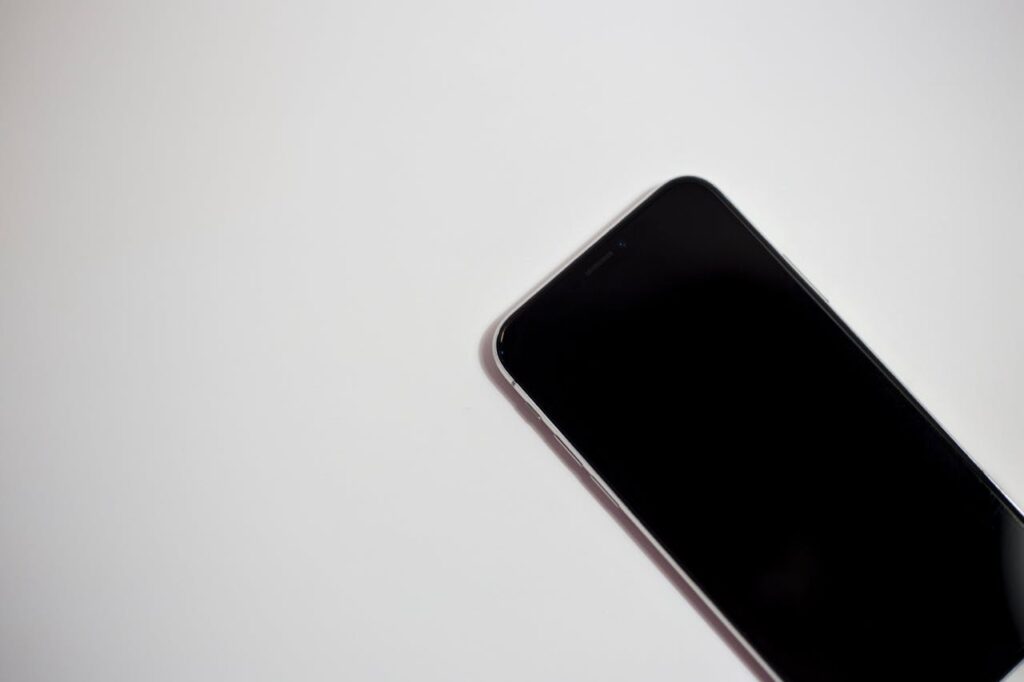
If you’re asking, why is my phone working but the screen is black iPhone?, you’re not alone. Many iPhone users experience a situation where the phone is still active, but the display remains completely black.
This issue can be frustrating, especially if your device seems functional but unusable. In this guide, we’ll break down the most common causes and show you practical fixes you can try before heading to a repair center.
Why Is My iPhone Screen Black But The Phone Is Still Working?
When your iPhone is clearly powered on, but the screen stays black, the issue usually falls into one of two categories:
- Software-related problems
- Hardware-related damage
Let’s look at each one in detail.
Software Glitch Or Frozen Display
One of the most common answers to why is my phone working but the screen is black iPhone is a temporary software crash.
Sometimes iOS may freeze during:
- A system update
- App installation
- Heavy multitasking
- Battery drain shutdown
In this case:
- You can hear notifications
- The phone vibrates
- Siri may respond
- Calls still come through
But the display fails to wake.
This type of issue often happens on models like the iPhone 11, iPhone 13, or iPhone 14 after a software update.
The good news? Software-related black screens are usually fixable at home.
Display Or Hardware Damage
If restarting doesn’t fix the issue, hardware may be involved.
Common hardware causes include:
- A damaged LCD or OLED panel
- Loose internal display connectors
- Water damage
- Impact damage from drops
- Faulty display backlight
If your phone was dropped recently or exposed to moisture, the display cable inside the device could be disconnected or damaged.
In these cases, the phone continues functioning internally, but the screen cannot show anything.
Quick Fixes For iPhone Black Screen Issue
When you are looking for an answer to why is my phone working but the screen is black iPhone, it’s too early to assume the worst. Try these troubleshooting steps. Many users fix the issue in minutes.
Force Restart Your iPhone
A force restart is often the fastest solution when dealing with a frozen or unresponsive screen.
The steps depend on your model:
For iPhone 8 or newer models like the iPhone 17:
- Quickly press and release the Volume Up button
- Quickly press and release the Volume Down button
- Press and hold the Side button
- Keep holding until the Apple logo appears
For older models like iPhone 7 or iPhone 6s, the button combination is different.
A force restart does not erase data. It simply forces the system to reboot, which can fix:
- Frozen displays
- Black screens after update
- Minor software crashes
If your screen lights up after this step, the issue was likely a temporary software glitch.
Charge And Check For Overheating
Sometimes the answer to why is my phone working but the screen is black iPhone is simpler than expected; low battery or overheating.
- Plug Into A Charger
Connect your iPhone to a reliable charger and let it sit for at least 15–30 minutes.
A completely drained battery can cause:
- Black screen
- Slow reboot
- Delayed display response
- Check For Overheating
If your iPhone feels hot:
- Remove it from direct sunlight
- Take off the case
- Let it cool down
Overheating can temporarily disable the display to protect internal components.

When The Black Screen Means Hardware Repair
If none of the above fixes work, you may be dealing with a hardware failure.
Signs you need professional repair:
- The screen remains black after multiple force restarts
- You see faint lines or flickering before it went black
- The phone was dropped or submerged in water
- Only part of the screen lights up
You can feel the vibration, but cannot see anything
In this situation, visiting an authorized service provider or Apple Store is recommended.
A technician may need to:
- Replace the display assembly
- Reconnect internal cables
- Repair water-damaged components
Avoid trying to open the phone yourself unless you are experienced, as modern iPhones are tightly sealed and delicate.
>>>Read more: How To Get Transfer PIN From T Mobile (Step-By-Step Guide)
How To Prevent iPhone Black Screen Problems
While some issues are unavoidable, you can reduce your risk with these habits:
- Keep iOS Updated
Install official updates regularly to prevent system bugs.
- Avoid Third-Party Charging Accessories
Low-quality cables can cause power irregularities that affect the display.
- Use A Protective Case
A shockproof case reduces the chance of internal display damage after drops.
- Avoid Water Exposure
Even water-resistant models are not fully waterproof.
- Don’t Ignore Flickering
If your screen flickers or shows random black flashes, back up your data immediately and seek repair before total failure.
FAQs
Why Can I Hear Sounds But My iPhone Screen Is Black?
This usually means your iPhone is powered on, but the display system isn’t responding.
Possible reasons include:
- iOS crash
- Frozen screen
- Backlight failure
- Loose display connector
A force restart is the first thing you should try.
Can A Black iPhone Screen Fix Itself?
Sometimes, yes, if the issue is caused by a temporary software glitch or overheating.
However, if the black screen is due to hardware damage, it will not fix itself and will require screen replacement or internal repair.
If the issue happens repeatedly, back up your data and have the device inspected as soon as possible.
Conclusion
If you’re wondering, why is my phone working but the screen is black iPhone, the cause is usually either a temporary software glitch or display hardware damage.
Start with these steps:
- Force restart your device
- Charge it fully
- Let it cool if overheated
If the screen remains black after troubleshooting, professional repair may be necessary.
In many cases, the issue is minor and fixable at home, so don’t panic right away.