How to connect laptop to TV? HDMI is the fastest and most reliable option. Wireless casting via Miracast, AirPlay, or Chromecast handles it when cables are inconvenient. This guide covers both routes with step-by-step instructions for Windows, Mac, and any device.
1. Connecting My Laptop to My TV: Overview of Methods
Before diving into steps, choosing the right method to connect laptop to TV saves time.
- HDMI cable: the most reliable option. No lag, no setup, works on any laptop with an HDMI or USB-C port and any TV made after 2009. Best for presentations, gaming, and anything where video quality or zero delay matters.
- Miracast (Windows): built into Windows 8.1 and later. Streams wirelessly to any Miracast-enabled smart TV or dongle. No app or account needed. Works well for screen mirroring and presentations. Some lag is normal.
- AirPlay (Mac): Apple’s wireless display protocol. Works natively between a Mac and an Apple TV, or to any AirPlay 2-compatible smart TV (Samsung, LG, Sony, Vizio).
- Chromecast or Google TV: plug a Chromecast dongle into the TV’s HDMI port. Cast a browser tab or full screen from Chrome on any laptop, Windows or Mac. Works on older TVs without smart features. Requires Wi-Fi.
2. How to Connect Laptop to TV via HDMI
HDMI is the simplest method to connect laptop to TV. The steps are the same on Windows and Mac, with one variation for laptops that only have USB-C ports.
Step 1: Check Your Laptop’s Port (HDMI or USB-C)
Before connecting anything, identify the video output port on your laptop. Most common options:
- HDMI: Found on most Windows laptops
- USB-C: Common on MacBooks and ultrabooks
- Thunderbolt: Available on newer Mac and premium Windows laptops
Step 2: Plug In the Cable and Select TV Input
Once you’ve identified the correct port:
- Connect one end of the HDMI cable to your laptop.
- Connect the other end to an available HDMI port on your TV.
- Turn on both devices.
- Press the Input or Source button on your TV remote.
- Select the correct HDMI source (HDMI 1, HDMI 2, etc.).
Step 3: Adjust Display Settings on Your Laptop
After the connection is established, select how you want to use the TV.
Windows
- Press Windows + P
- Choose one of the following:
- Duplicate: Mirror your laptop screen
- Extend: Use the TV as a second monitor
- Second Screen Only: Display content only on the TV
Mac
- Open System Settings > Displays
- Select either:
- Mirror Displays
- Extended Display
3. How to Connect Laptop to TV Wirelessly
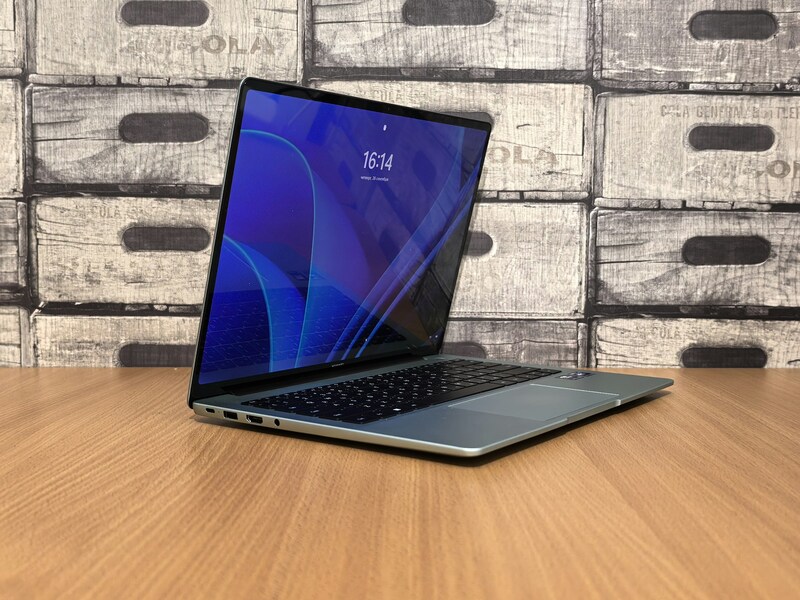
How to connect my laptop to my TV wirelessly? Wireless connection removes the cable but introduces a small amount of latency. For video calls, streaming within the local network, and presentations, it works well.
Windows: Using Miracast (Built-In, No App Needed)
Miracast is built into Windows 10 and Windows 11. Both the laptop and the TV (or a Miracast dongle plugged into the TV) must be on the same Wi-Fi network for the connection to work.
- On the TV, enable screen mirroring or wireless display if it has a smart menu. On a Miracast dongle like the Microsoft Wireless Display Adapter, just plug it in and switch the TV to that HDMI input.
- On the Windows laptop, press Windows key and K. This opens the Cast panel.
- Select your TV or Miracast device from the list. Windows will connect and begin mirroring the display within a few seconds.
- To extend the display instead of mirror it, click the Change projection mode link at the top of the Cast panel and select Extend.
Mac: Using AirPlay
AirPlay works between a Mac and an Apple TV, or to any smart TV with AirPlay 2 support. Both devices must be on the same Wi-Fi network.
- On the Mac, click the Control Center icon in the menu bar (top right corner).
- Click Screen Mirroring.
- Select the TV or Apple TV from the list. Enter the AirPlay code displayed on the TV screen if prompted.
- To use the TV as an extended display rather than a mirror, click the AirPlay icon in the menu bar after connecting and select Use As Separate Display.
If the TV does not appear in the AirPlay list, confirm that AirPlay Receiver is enabled on the TV (Settings on Apple TV, or the smart TV’s AirPlay settings menu) and that both devices are on the same network.
Any Laptop: Using Chromecast or Google TV
Chromecast works with any laptop that runs the Chrome browser, regardless of operating system.
- Plug the Chromecast into an HDMI port on the TV and switch the TV to that input. Set up the Chromecast using the Google Home app on your phone if not already done.
- On the laptop, open Google Chrome.
- Click the three-dot menu at the top right and select Cast.
- Choose your Chromecast device from the list. Select Cast tab to share the active tab or Cast desktop to share the full screen.
Chromecast casting requires Wi-Fi. The laptop and Chromecast must be on the same network. Performance is best on a 5 GHz Wi-Fi connection rather than 2.4 GHz.
>>> Read more: How Does 5G Home Internet Work? A Complete Guide
4. FAQs
Why Is My TV Not Showing My Laptop Screen?
Start with the input selection. The TV needs to be set to the correct HDMI input or wireless input before the signal appears. On a wired connection, try replugging the cable at the laptop end. On a wireless connection, confirm both devices are on the same Wi-Fi network. On Windows, press Windows key and P to check that the display mode is set to Mirror or Extend rather than Laptop screen only.
Can I Connect a Laptop to a TV Without HDMI?
Yes. Wirelessly via Miracast (Windows), AirPlay (Mac), or Chromecast (any laptop with Chrome). If the TV has a VGA port and the laptop has one, a VGA cable works for video without audio. USB-C to HDMI adapters are a cable-based alternative when the laptop lacks a native HDMI port. DisplayPort to HDMI adapters also work for laptops with DisplayPort outputs.
Is Wired or Wireless Better for Connecting Laptop to TV?
Wired is better when you need zero lag, consistent quality, or stable audio sync. It is the right choice for gaming, video editing review, and professional presentations. Wireless is more convenient for casual streaming, sharing content, and situations where running a cable is impractical.
5. Conclusion
Knowing how to connect laptop to TV via cable or wirelessly covers every situation you are likely to encounter. HDMI is the go-to when you need reliability and zero lag. Miracast, AirPlay, and Chromecast each handle the wireless scenario for different device combinations.
The HDMI route takes 30 seconds once you have the right cable. Wireless setup takes a few minutes the first time and connects in seconds after that. Use whichever suits the moment.