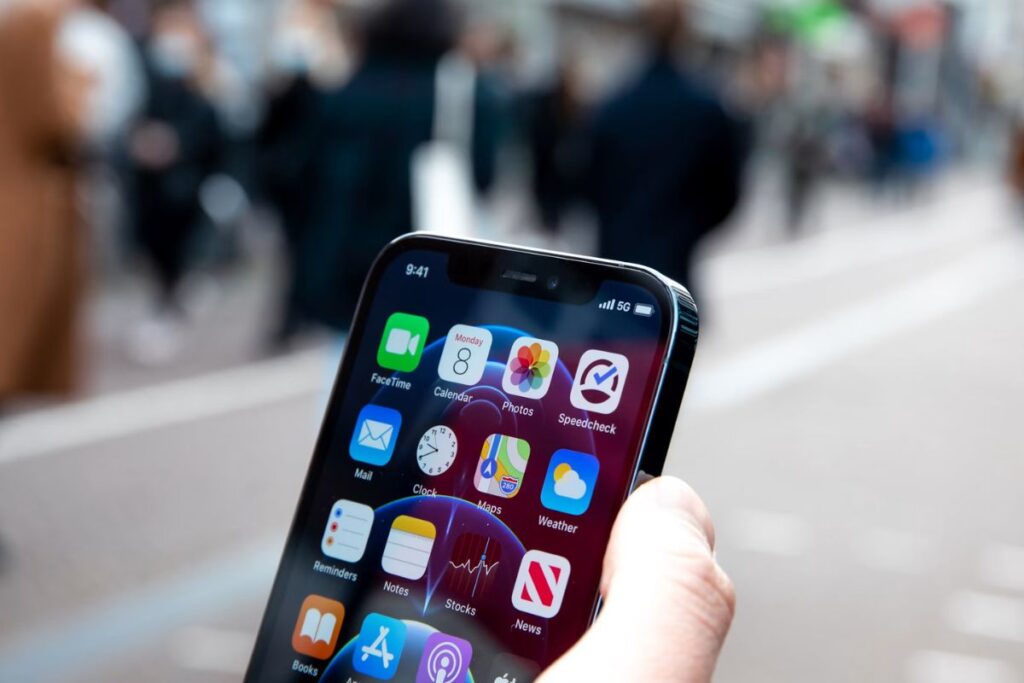
Why is my 5G not working? If your phone suddenly loses its 5G connection or switches back to LTE, the issue could be related to coverage, device settings, software, or temporary network problems. The good news is that many 5G issues are easy to fix.
This guide explains the most common reasons behind 5G connection problems and the practical steps you can take to restore service.
1. Why Is My 5G Not Working?
If your phone suddenly loses 5G connectivity, the issue is not always related to your carrier. Coverage availability, device settings, software updates, and network conditions can all affect how your phone connects.
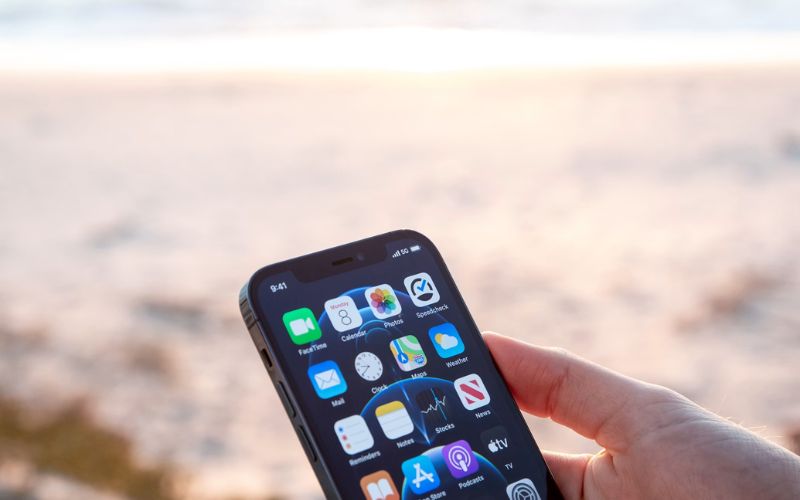
2. Common Causes and Practical Fixes for 5G Not Working
The answer can vary depending on your location, device, and carrier. Below are some of the most common causes and practical solutions.
You’re outside 5G coverage
One of the most common reasons for 5G security is simply being outside your carrier’s coverage area. While 5G networks continue to expand, coverage is still not as widespread as LTE in many locations, particularly in rural areas, underground spaces, and remote regions.
How to fix it: Check your carrier’s coverage map to confirm whether 5G service is available in your area. If you’re traveling or recently changing locations, move to an area with confirmed 5G coverage and give your device a few moments to reconnect to the network.
5G Is disabled in your phone settings
Some phones allow users to switch between LTE and 5G manually. A settings change, carrier update, or software update may disable 5G without realizing it.
How to fix it: Open your mobile network settings and make sure 5G is selected as the preferred network type. If you recently changed settings, switching back to automatic network selection may also help restore connectivity.
Airplane mode or temporary network glitches
Temporary connection issues may be the cause. Software conflicts or brief network registration interruptions can sometimes prevent your phone from communicating properly with nearby cell towers.
How to fix it: Turn Airplane Mode on for 10–15 seconds and then turn it off. If the issue remains, restart your phone to force a fresh connection to the network and refresh cellular services.
Carrier outages or network maintenance
Carriers occasionally perform maintenance, upgrade equipment, or experience unexpected outages that affect 5G service. In these situations, the issue may not be related to your device at all.
How to fix it: Visit your carrier’s website, mobile app, or outage reporting page to check for known service interruptions. If an outage has been reported, you may need to wait until service is restored.
Your SIM card is outdated
An outdated SIM card could be part of the problem. Some older SIM cards were issued before 5G became widely available and may not support all current network features.
How to fix it: Contact your carrier and confirm whether your SIM card supports its 5G network. If necessary, request a replacement SIM card, which is often available at little or no cost.
Software is out of date
Outdated operating systems can create compatibility issues with carrier settings and network features. In some cases, bugs in older software versions may affect 5G performance.
How to fix it: Check for available software updates and install the latest version for your device. After updating, restart your phone to ensure all network-related changes are applied correctly.
Indoor obstacles are blocking the signal
One possible reason is that the signal is being obstructed by your building. Dense construction materials and energy-efficient windows can limit 5G reception, especially at higher frequencies.
How to fix it: Move closer to a window or test your connection outdoors. If the signal improves significantly outside, indoor interference is likely contributing to the problem.
Network congestion during peak hours
Heavy network usage can affect connection quality, particularly in crowded areas such as stadiums, shopping centers, airports, and busy city centers.
How to fix it: Try reconnecting later when network demand is lower. Moving a short distance away from crowded areas may also improve connection quality and data speeds.
Your phone does not fully support your carrier’s 5G bands
Device compatibility could be a factor. Not all 5G phones support every carrier’s frequency bands, so a phone purchased from another region or network may not fully connect to local 5G services.
How to fix it: Check your phone’s specifications and compare them with the 5G bands supported by your carrier. If key bands are missing, your device may only receive partial 5G coverage or fall back to LTE.
Incorrect APN or network settings
Network configuration issues can occasionally prevent a device from connecting properly to cellular services. Incorrect APN settings are more common after switching carriers or manually changing network configurations.
How to fix it: Reset your network settings and allow your device to automatically download the latest carrier configuration. After the reset is complete, reconnect to the network and check whether 5G service has returned.
3. Best Practices to Avoid 5G Not Working in the Future
Adopting a few simple habits can help reduce the likelihood of future connectivity issues, even though some network problems are unavoidable.
- Keep your device updated
Software updates often include bug fixes and network improvements. Keeping your device current can help maintain stable 5G connectivity.
- Check coverage before traveling
Coverage varies by region. Reviewing carrier coverage maps before traveling can help set realistic expectations for service availability.
- Use carrier-certified devices
Make sure your phone is compatible with your carrier’s network. Carrier-approved devices are typically optimized to support the required 5G bands and features.
- Monitor carrier service alerts
Many carriers provide outage notifications through their apps and websites. Staying informed can help you quickly determine whether an issue is affecting a wider area.
- Reset network settings when problems persist
If connectivity issues continue, resetting network settings can often resolve configuration problems without requiring advanced troubleshooting.
>>> Read more: Is 5G or LTE Better? An Honest Side-by-Side for Straight Answer
4. FAQs
Why is my 5G not working but LTE works?
LTE often has broader coverage than 5G, so your phone may switch to LTE when a stable 5G signal is unavailable. This commonly occurs in rural areas, inside buildings, or locations where 5G deployment is still limited.
Why is my 5G signal weak indoors?
Building materials such as concrete, metal, and energy-efficient glass can weaken wireless signals before they reach your device. Higher-frequency 5G signals are often more affected by these obstacles than lower-frequency LTE signals.
Does restarting a phone fix 5G issues?
Yes, sometimes. Restarting refreshes network connections and can resolve temporary software or connectivity problems.
How do I know if there is a carrier outage?
Check your carrier’s website, mobile app, or service status page for outage reports. You can also use outage tracking websites to see whether other users in your area are reporting similar issues.
>>> Read more: Why Is 5G So Slow? Real Reasons and How to Fix It
5. Conclusion
Why is my 5G not working? In many cases, the problem is caused by coverage limitations, network settings, outdated software, or temporary carrier issues rather than a hardware failure.
By identifying the cause and applying the appropriate fix, you can often restore your connection quickly and reduce the chances of future disruptions.