A laptop that once started in seconds can gradually become frustrating to use. Programs take longer to open, web pages lag, and even simple tasks feel slower than they should. Before assuming it’s time to buy a new computer, it’s worth finding out what’s actually causing the slowdown.
If you’re asking why is my laptop so slow, this guide explains the most common causes, how to identify hardware issues, and the easiest ways to improve performance.
1. Why Is My Laptop So Slow?
In most cases, a slow laptop isn’t caused by a single problem. Instead, several small issues such as background apps, limited storage, outdated software, or aging hardware, combine to reduce performance over time.
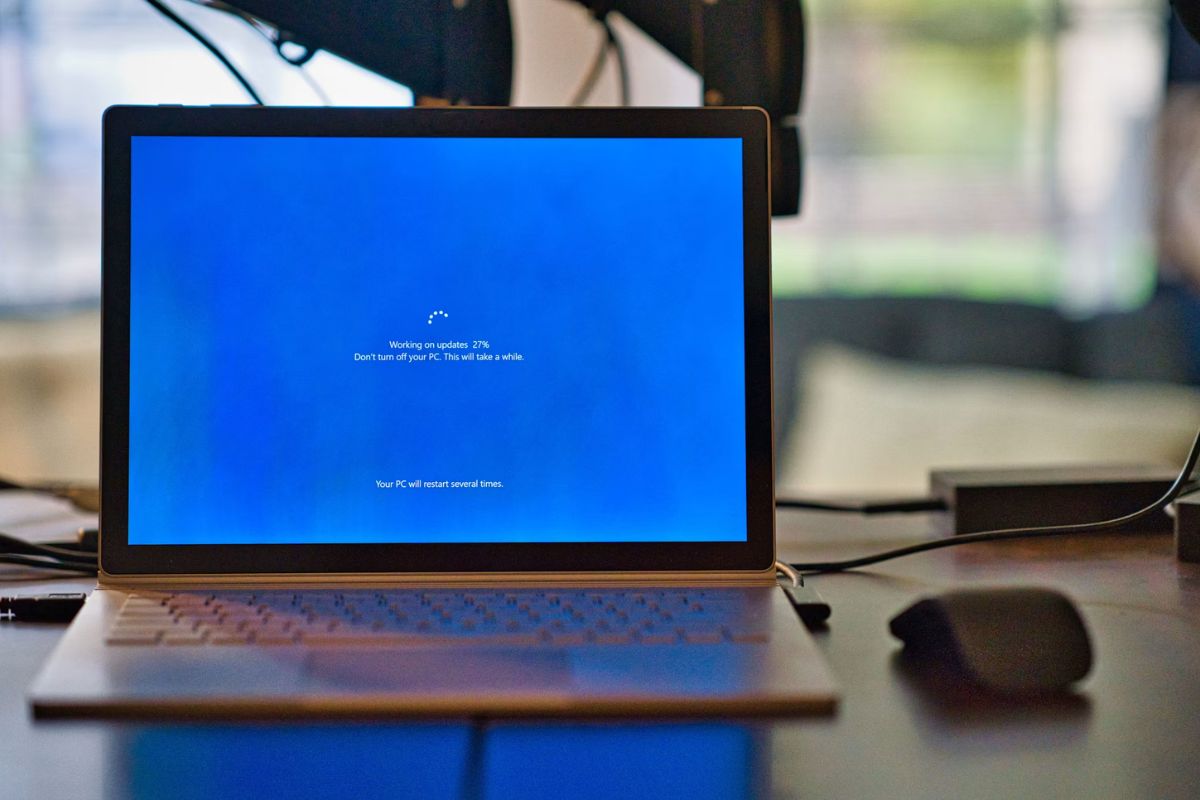
If you’re wondering “why is my new laptop so slow”, the cause is often temporary rather than a hardware defect. A new laptop may still be installing Windows updates, indexing files, syncing cloud storage, or downloading drivers in the background.
Entry-level models with limited RAM or slower processors can also feel sluggish when running several applications at once. In most cases, performance improves after the initial setup is complete.
2. The Most Common Reasons Your Laptop Feels Slow
If you’re wondering why is my laptop running so slow, the cause isn’t always a hardware problem. In many cases, common software issues can reduce performance, and they’re often much easier to identify and fix.
Too many apps running in the background
Every application running in the background uses CPU, memory, or storage resources. When too many startup apps or background processes are active, your laptop has fewer resources available for the tasks you’re actually using.
Your storage is almost full
Low storage space could be part of the problem. When your drive is nearly full, Windows has less room for temporary files, updates, and virtual memory, which can lead to noticeably slower performance.
Your laptop does not have enough RAM
RAM stores the data your laptop needs while applications are running. If available memory runs out, Windows begins using the storage drive as temporary memory, which is much slower and can make the entire system feel unresponsive.
Your browser has too many tabs or extensions
Your web browser could be using more resources than you expect. Too many open tabs or unnecessary extensions can consume a large amount of memory, making your laptop feel slower during everyday use.
Windows updates or drivers are unfinished
Sometimes performance slows while Windows installs updates or device drivers in the background. Interrupting these processes or delaying restarts can temporarily reduce system performance until the updates finish.
>>> Read more: How Long Do Laptops Last? A Practical Lifespan Guide
3. When Slowness Means a Hardware Problem
Sometimes software isn’t the real issue. If it continues to be a problem after basic troubleshooting, the hardware may be reaching its limits.
Overheating and loud fan noise: Constant heat forces the processor to reduce its speed to protect itself, causing applications to run more slowly.
Disk stuck at high usage: If Task Manager regularly shows the disk running near 100% even when few programs are open, your storage drive may be struggling to keep up.
Random freezing or shutdowns: Unexpected crashes often indicate failing hardware, overheating, or power-related issues rather than normal software slowdowns.
Very slow boot even after cleanup: If startup remains unusually slow after removing unnecessary programs, the storage drive or other hardware components may be limiting performance.
Old HDD, failing SSD, or limited RAM: Mechanical hard drives, aging solid-state drives, and insufficient memory can all reduce overall system responsiveness, especially when running newer software.
4. How to Speed Up a Slow Laptop Without Replacing It
Try these practical improvements before considering a replacement.
- Disable unnecessary startup apps: Reduce the number of programs that launch automatically when Windows starts.
- Free up storage: Delete temporary files, move large files to cloud storage, or uninstall applications you no longer use.
- Remove unused software and browser extensions: Eliminating unnecessary programs reduces background activity and frees up system resources.
- Update Windows and drivers: Installing the latest updates can fix performance bugs and improve hardware compatibility.
- Run a malware scan: Malicious software can consume processing power and slow your laptop without obvious warning signs.
- Switch out of power-saving mode: High-performance or balanced power settings allow the processor to operate at higher speeds when needed.
- Clean vents and reduce overheating: Removing dust from air vents improves airflow and helps prevent thermal throttling during demanding tasks.
5. FAQ
Why is my HP laptop so slow after an update?
It may happen because Windows is still completing background tasks such as indexing files, installing drivers, or optimizing the system. Wait for the update to finish, restart the laptop, and check whether performance improves over the next few hours.
Can low storage make a laptop slow?
Yes, limited storage space could be one of the main reasons. Windows needs free disk space for temporary files and virtual memory, so a nearly full drive can slow down everyday tasks like opening apps and switching between programs.
Does adding RAM make a laptop faster?
Yes. Adding RAM can improve performance if your laptop frequently runs out of memory. It allows more applications to stay in memory at the same time, reducing the need for Windows to rely on slower storage.
6. Conclusion
If you’ve been asking “why is my laptop so slow“, the answer is usually a combination of software settings, limited resources, or aging hardware rather than a single fault. Start with simple fixes like freeing up storage, reducing background apps, and updating Windows before assuming your laptop needs to be replaced.