How to clean laptop screen safely requires the right cloth, the right liquid, and the right technique. This guide covers everything needed to get a clean result without damaging the display.
1. What You Will Need to Clean a Laptop Screen
ow to clean my laptop screen? Learning about what you will need to clean a laptop screen. Keeping the supply list short is intentional. Using more products than necessary introduces more risk of damage.
- A microfiber cloth. This is the only safe material for wiping a laptop screen. Microfiber is soft enough not to scratch the surface and dense enough to lift dust and oils without leaving fibers behind.
- Distilled water. Tap water contains minerals that leave residue after evaporating. Distilled water evaporates cleanly and is the safest liquid for screens that only need light cleaning.
- A screen-safe cleaning solution (optional). For stubborn smudges, a solution specifically labeled safe for LCD or LED screens can be used. These are typically a diluted isopropyl alcohol mixture with additives that protect the anti-glare coating. Do not use general-purpose household cleaners.
- Compressed air (optional). Useful for blowing loose dust out of the bezel and corners before wiping, which prevents dragging grit across the screen surface during the wipe.
2. What Not to Do When Cleaning a Laptop Screen
The don’ts matter as much as the do’s here. Several common approaches cause damage that ranges from streaks to permanent coating degradation.
- Do not spray liquid directly onto the screen. Liquid sprayed directly onto a screen can run into the bezel seams and reach the internal display components. Always apply liquid to the cloth first.
- Do not use paper towels, tissue paper, or regular cloth. All of these are too abrasive for screen surfaces and will leave micro-scratches over time that gradually degrade the image quality.
- Do not use household glass cleaners like Windex. Products containing ammonia, bleach, or acetone dissolve the anti-glare and anti-reflective coatings applied to most laptop screens. Damage from these products is irreversible.
- Do not use undiluted isopropyl alcohol above 70 percent concentration. Higher concentrations can strip anti-glare coatings. Some manufacturers advise against any alcohol on their screens. Check the laptop’s manual or manufacturer’s cleaning guidelines before using any alcohol-based product.
- Do not press hard on the screen. Laptop displays are pressure-sensitive. Applying significant pressure while wiping can cause temporary discoloration, dead pixel clusters, or permanent display damage.
3. How to Clean a Laptop Screen
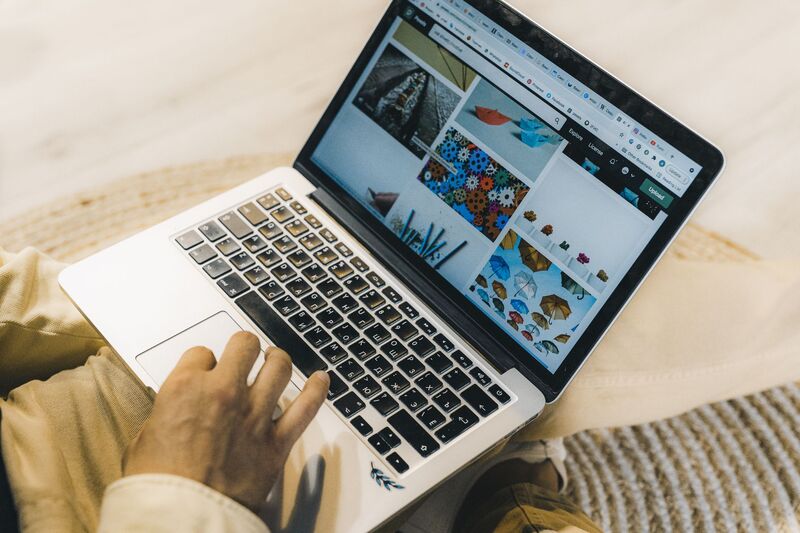
How to clean laptop screen and keyboard? The five steps below produce a clean screen without streaks or damage when followed in order. The whole process takes about five minutes.
Turn Off and Unplug Your Laptop
Power down the laptop completely and unplug it from the charger. A dark screen makes smudges and dust much easier to see against the black surface, which means cleaning is more accurate.
It also eliminates any risk of static discharge or moisture contacting active circuits during the process.
Wipe Away Dust and Loose Debris
Before introducing any moisture, use a dry microfiber cloth to gently wipe the screen in one direction, top to bottom or side to side, to remove loose dust.
Using compressed air first to blow out the bezel corners reduces the amount of debris on the surface before the cloth touches it.
Dampen the Cloth (Not the Screen)
Lightly dampen a clean section of the microfiber cloth with distilled water or a screen-safe cleaning solution. The cloth should feel barely damp, not wet.
Wring out any excess moisture before bringing the cloth near the screen. The goal is enough moisture to lift oils and fingerprints without any liquid dripping or running.
Wipe the Screen in Circular Motions
Using the dampened cloth, wipe the screen in gentle circular motions, moving from the center outward. Apply minimal pressure. Circular motions distribute cleaning solution evenly and help lift oils from the surface rather than just pushing them around.
For persistent smudges, make a second pass with a slightly damp cloth rather than pressing harder on the first pass. Apple’s cleaning guidelines for Mac displays recommend a soft, lint-free cloth and no harsh chemicals or aerosol sprays, which aligns with best practice for all laptop screens regardless of brand.
Dry and Let It Air Out Before Powering On
After wiping, use a dry section of the microfiber cloth to gently remove any remaining moisture with light, circular strokes. Leave the laptop open with the screen facing a well-ventilated area for two to five minutes before powering it back on.
>>> Read more: How to Factory Reset HP Laptop: 3 Safe Methods to Try
4. How Often Should You Clean Your Laptop Screen?
Screen cleaning frequency depends on how the laptop is used and where it is used. A few general guidelines work for most situations.
A light wipe with a dry microfiber cloth once a week or every two weeks removes dust before it accumulates and eliminates the need for frequent damp cleaning. A damp clean with distilled water is appropriate whenever fingerprints or smudges are noticeable, typically every two to four weeks for average use.
In dusty environments, near food, or if the laptop is used by multiple people, more frequent cleaning keeps the screen comfortable to use and prevents buildup that becomes harder to remove over time.
5. FAQs
Can I Use Alcohol Wipes on My Laptop Screen?
It depends on the manufacturer and the concentration. Apple approves 70 percent isopropyl alcohol wipes for its Mac displays. Many Windows laptop manufacturers advise against any alcohol on the screen.
Check the specific model’s cleaning guidelines before using alcohol-based wipes. Screen-safe cleaning solutions designed for LCD and LED displays are a safer general alternative.
Is It Safe to Spray Water Directly on the Screen?
No. Spraying any liquid directly onto the screen risks moisture running into the bezel and reaching internal display components or the motherboard. Always apply liquid to the cloth first, then wring it out until the cloth is just barely damp before bringing it near the screen.
Why Does My Screen Look Discolored After Cleaning?
Discoloration after cleaning is usually caused by moisture that has not fully evaporated. Allow the screen to air dry for several minutes before powering the laptop on.
If discoloration persists after the screen is fully dry, the anti-glare coating may have been damaged by a cleaning product that was too harsh. Coating damage is permanent and cannot be repaired by further cleaning.
Can I Use a Paper Towel to Clean My Laptop Screen?
No. Paper towels feel soft but are abrasive enough to leave micro-scratches on screen surfaces, particularly on matte anti-glare coatings. Over time, repeated paper towel use creates a haze of fine scratches that makes the screen harder to read.
A microfiber cloth is the only material soft enough to clean a laptop screen without causing surface damage.
6. Conclusion
How to clean laptop screen safely? It comes down to using the right cloth, applying liquid to the cloth rather than the screen, wiping with minimal pressure, and letting it dry before powering back on.