If your phone keeps shutting down at random times or your screen goes dark too quickly, you’re not alone. This issue can happen because of settings like Auto-Lock and Battery Saver, but it can also be caused by overheating, a weak battery, or system bugs.
In this guide, you’ll learn how to make your phone not turn off, whether you’re using Android or iPhone, plus how to keep your screen on longer without killing your battery.
Why Your Phone Keeps Turning Off Automatically
Before changing settings, it helps to understand what’s actually happening. A phone may “turn off” in two different ways:
- The screen turns off (sleep mode/screen timeout)
- The entire phone shuts down (power off / sudden restart)
Here are the most common causes:
- Auto-lock or screen timeout is too short. This is the #1 reason your display turns off quickly, especially when you’re reading, cooking, or following instructions.
- Battery Saver / Low Power Mode is enabled. To extend battery life, phones reduce performance and shorten screen-on time, which can make your screen feel “aggressively” timed out.
- Battery health is weak. If your battery can’t deliver stable power (especially under load), your phone may shut down even at 20–40%.
- Overheating protection. Phones are designed to protect internal components. If your device overheats, it may dim the screen, close apps, or even shut off.
- Bugs, outdated software, or misbehaving apps. A recent update or app issue can cause random restarts, freezing, or shutdown loops.
How To Make Your Phone Not Turn Off Automatically (Android & iPhone)
If you want to fix random shutdowns or screen sleeping too fast, start here. These steps cover the most effective settings and real-world causes.
Change Auto-Lock / Screen Timeout Settings
This is the easiest fix if your screen keeps going dark.
On Android (most phones):
- Go to Settings
- Tap Display
- Select Screen timeout (or Sleep)
- Choose a longer time, like 1 min, 2 mins, 5 mins, or 10 mins
On iPhone:
- Go to Settings
- Tap Display & Brightness
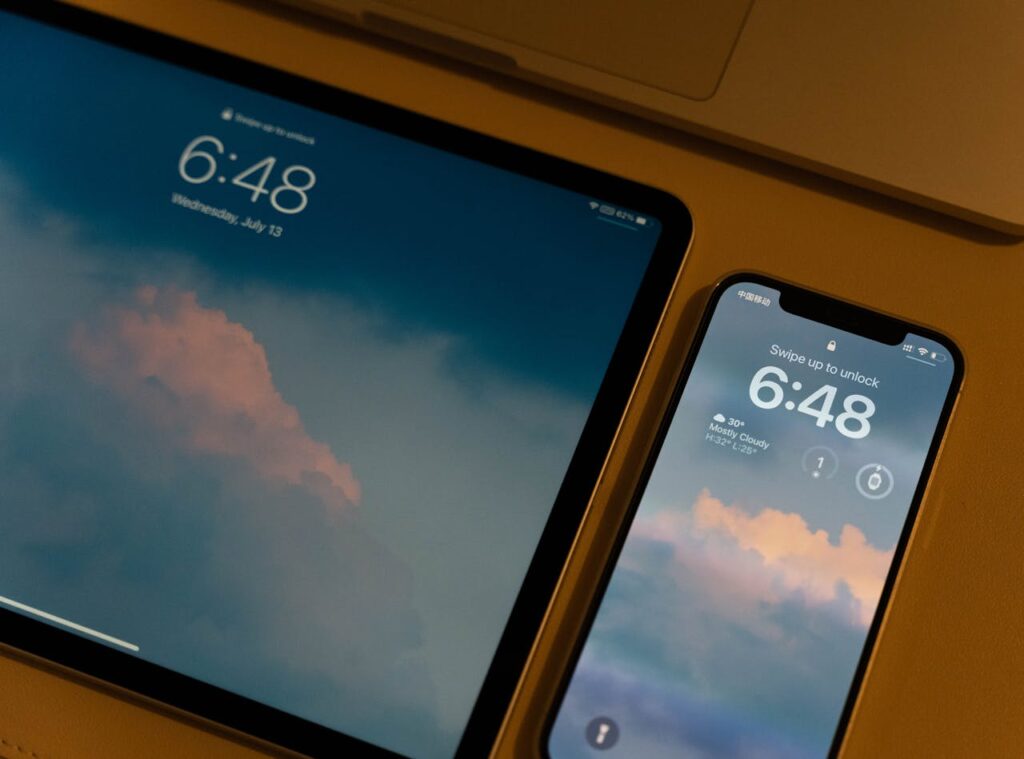
- Tap Auto-Lock
- Choose 1 minute, 2 minutes, 3 minutes, 5 minutes, or Never
If you’re looking for how to make your phone not turn off automatically, this is the setting that usually solves it in under a minute.
Turn Off Battery Saver / Low Power Mode
Battery-saving modes can shorten screen-on time and make your phone “sleep” faster than normal.
On Android:
- Open Settings
- Go to Battery
- Tap Battery Saver
- Turn it Off
Some Android phones also have Adaptive Battery or Power Saving Mode in a separate section; turn those off too if needed.
On iPhone:
- Go to Settings
- Tap Battery
- Turn Low Power Mode Off
Tip: If you rely on battery saving often, consider using it only below 20% so it doesn’t constantly override your screen timeout choices.
Stop Your Phone From Turning Off By Itself (Battery, Overheating, Bugs)
If your whole phone is powering off randomly, this is more serious than screen timeout.
Check battery health
- iPhone: Settings → Battery → Battery Health & Charging. If “Maximum Capacity” is low (like under 80%) or it mentions degraded performance, that can cause shutdowns.
- Android: Battery health may appear under Settings → Battery (depends on brand). You can also check for swelling or rapid percentage drops.
Avoid overheating triggers
Your phone may turn off by itself when it gets too hot. Common causes:
- Playing heavy games while charging
- Leaving it in sunlight or a hot car
- Using thick cases that trap heat
- Try removing the case temporarily and charging in a cool area.
Update your software
Old versions can cause crashes and stability issues.
- Android: Settings → System → Software update
- iPhone: Settings → General → Software Update
Check for a problematic app
If shutdowns happen after opening a certain app:
- Update that app
- Clear cache (Android)
- Delete and reinstall it
Free up storage
- Low storage can cause lag, freezing, and sometimes random restarts.
- Aim to keep at least 5–10GB free
If you’re wondering how to make your phone not turn off by itself, the battery + overheating + software combo is where most real fixes happen.
>>> Read more: Why Does My Phone Say Emergency Calls Only? Common Causes And Fixes
How To Make Your Phone Screen Not Turn Off (Keep Display On Longer)
Sometimes your phone isn’t shutting down; it’s just turning the screen off too quickly. If you’re reading a recipe, watching a workout timer, or using maps, you’ll want a longer display time.
To how to make your phone screen not turn off, increase the screen timeout and adjust battery-saving behaviors.
Best Screen Timeout Settings For Daily Use
A good screen timeout depends on your lifestyle:
- 30 seconds: saves battery, but annoying for reading
- 1 minute: balanced for most people
- 2 minutes: great for reading and messaging
- 5 minutes: ideal for tutorials, recipes, notes
- 10 minutes+: best for work, long tasks, and presentations
If you want a simple recommendation, choose 2 minutes for daily use.
Tips To Keep The Screen On Without Draining Battery Too Fast
Keeping your screen on longer can drain power, but you can reduce the impact with smart tweaks:
- Lower brightness slightly (this helps the most)
- Use Auto-Brightness so your phone adjusts naturally
- Turn off Always-On Display (Android + some iPhone models)
- Disable unnecessary background apps
- Use Wi-Fi instead of mobile data when possible
- Keep your phone cool while charging
If your goal is how to make your phone not turn off without killing your battery, the best combo is longer timeout + moderate brightness.
How To Make Your Phone Not Turn Off iPhone
If you’re using an iPhone, there are a few iPhone-specific settings that control screen timing and shutdown behavior.
This section focuses on how to make your phone not turn off iPhone settings in a clear, step-by-step way.
Adjust iPhone Auto-Lock Settings
- Open Settings
- Tap Display & Brightness
- Tap Auto-Lock
- Choose a longer time, or select Never
Note: If Low Power Mode is enabled, your Auto-Lock options may be limited.
Check Low Power Mode And Battery Health
Turn off Low Power Mode:
- Settings → Battery → Low Power Mode (Off)
- Check Battery Health:
- Settings → Battery → Battery Health & Charging
If you see:
- “Service” warning
- Maximum Capacity very low
- Unexpected shutdown behavior
It may be time to replace the battery. This is one of the most common reasons people search for how to make your phone not turn off, and nothing else seems to work.
FAQs
How Do I Make My Phone Not Turn Off By Itself?
To stop shutdowns, check battery health, avoid overheating, update your OS, and remove any apps that cause crashes. If it continues, your battery may be failing and needs replacement.
How Do I Make My Phone Screen Not Turn Off?
Increase Screen Timeout (Android) or Auto-Lock (iPhone). You can also disable Battery Saver/Low Power Mode since it may shorten your screen-on time.
How Do I Make My Phone Not Turn Off Automatically?
If your screen keeps turning off, adjust Auto-Lock or screen timeout settings. If the phone fully powers off, check for battery problems, overheating, or software bugs.
How To Make Your Phone Not Turn Off iPhone?
Go to Settings → Display & Brightness → Auto-Lock and choose a longer option (or Never). Also, turn off Low Power Mode and check Battery Health for unexpected shutdown issues.
Conclusion
Learning how to make your phone not turn off is usually about fixing one of two things: your screen timeout settings or system stability issues like battery health and overheating. Start by increasing Auto-Lock / Screen Timeout, turning off Battery Saver, and then move on to battery and software checks if the phone shuts down completely.
With the right settings, your phone will stay on longer, feel more stable, and stop shutting down when you need it most.