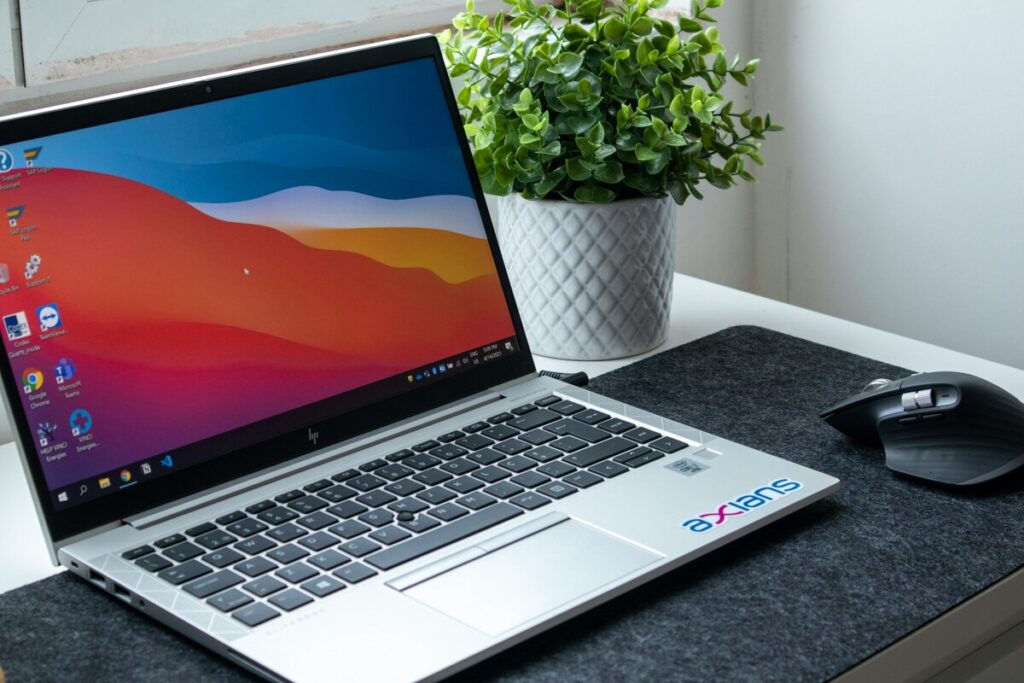
Knowing how to reset HP laptop correctly means choosing the right reset type for your situation first. A reset that keeps your files is very different from one that removes everything, and the steps that follow each one differ too. This guide covers the full process, including what to do once the reset is finished.
1. How to Reset HP Laptop: Which Type of Reset Do You Need?
Not every situation calls for the same reset. Choosing the wrong type wastes time at best and removes files you needed at worst. Here is how to match the reset type to the problem.
- Soft reset (restart): fixes minor freezes, temporary unresponsiveness, or glitches after a software change. Press and hold the power button until the laptop shuts off, then turn it back on. No settings or files are touched.
- Keep My Files reset: removes all installed applications and restores default system settings, but keeps your personal documents, photos, and downloads. Best for: sluggish performance, persistent software errors, or preparing a laptop you will continue using yourself after a clean slate.
- Remove Everything reset: wipes all personal files, apps, and settings. Returns the laptop to a factory state. Best for: selling or donating the device, severe malware, or starting completely fresh when files are already backed up.
- HP Recovery Partition reset (F11): uses HP’s own recovery tools at the BIOS level rather than Windows. Best for: situations where Windows cannot start normally or when the Windows reset interface is inaccessible.
2. How to Reset HP Laptop
The most practical access point for most users is Windows Settings. If that route is blocked by a forgotten password or a startup problem, the sign-in screen and F11 methods are covered in the second H3 below.
Reset From Windows Settings
This method works on Windows 10 and Windows 11. The menu labels differ slightly between the two versions, but the underlying process is the same.
Step 1: Go to Settings > Recovery
Press the Windows key, then click the gear icon to open Settings. On Windows 11, navigate to System, then scroll down to Recovery. On Windows 10, go to Update and Security, then select Recovery from the left sidebar. Both paths lead to the same Reset this PC section.
Step 2: Select “Reset This PC”
Click the Get Started button (Windows 10) or the Reset PC button (Windows 11). A dialog window opens with two core options. Read both descriptions before choosing, because the decision affects which files remain after the process completes.
Step 3: Choose Keep Files or Remove Everything
Keep my files removes installed apps and returns settings to defaults. Your documents, photos, music, and downloads remain in place.
Remove everything deletes all personal files alongside the apps and settings. If you choose this option, a second prompt appears asking whether to clean the drive.
Just remove my files performs a quick format, which is sufficient for personal use.
Step 4: Complete the Reset
Windows shows a summary of the changes that will occur. Click Reset to confirm. The laptop restarts and begins the process automatically.
Multiple restarts are normal. The screen may show a progress percentage or a spinning circle for an extended period. Do not press the power button or close the lid.
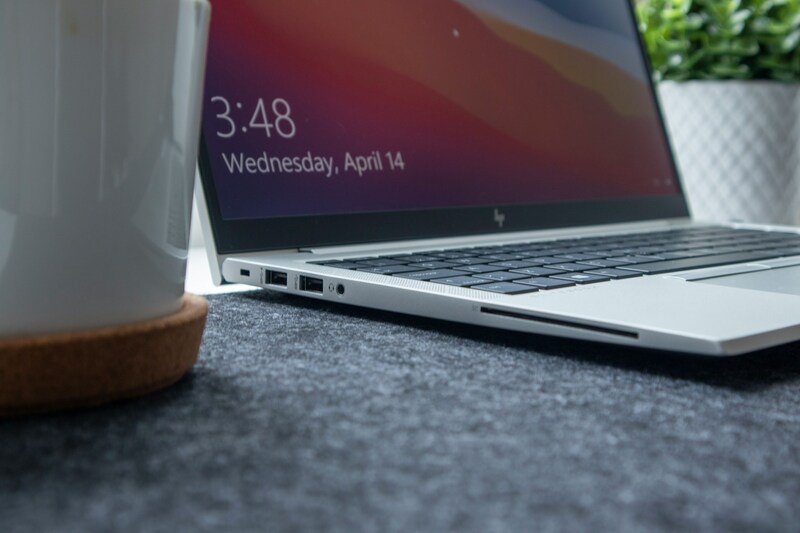
Reset HP Laptop From the Sign-in Screen or Recovery Mode
When the Windows password is unknown or the system has a startup problem that prevents reaching the Settings menu, two alternative entry points are available.
Method 1: Use Shift + Restart at the Login Screen
At the Windows login screen, look for the power icon in the bottom right corner. Hold the Shift key and click Restart simultaneously. Keep holding Shift until the screen turns blue and displays a menu.
- Select Troubleshoot from the blue menu.
- Select Reset this PC.
- Choose Keep my files or Remove everything.
- Follow the same prompts as the Settings method to complete the reset.
Method 2: Boot via F11 (HP Recovery Partition)
F11 accesses HP’s dedicated recovery partition before Windows loads. Use this when Windows will not start or when the login screen is not reachable.
- Power off the laptop completely using the power button.
- Power it back on and press F11 repeatedly starting immediately. The recovery environment should appear within a few seconds of the screen lighting up.
- Select Troubleshoot, then Reset this PC or HP Recovery Manager depending on what your model displays.
- Choose your reset option and follow the prompts.
>>> Read more: How to Factory Reset HP Laptop: 3 Safe Methods to Try
3. What to Do After the Reset
The reset completes when the initial Windows setup screen appears. What you do in the first session after the reset determines how quickly the laptop returns to a usable state. Four tasks, addressed in order, cover the essentials.
Install Windows updates first
Go to Settings, Windows Update, and run Check for Updates. A freshly reset laptop may be months behind on security and feature updates depending on when the recovery image was created. Install all pending updates before restoring any files or software. Some updates require a restart to complete.
Restore backed-up files
If you chose Remove Everything and backed up before resetting, reconnect the external drive or log into the cloud storage service and transfer your files back. Do this before reinstalling applications so that application settings are not overwritten by older backup versions.
Reinstall important software
Reinstall applications in priority order: browser first (to restore bookmarks and saved passwords), then productivity software, then anything else. Avoid reinstalling software that caused problems before the reset until you have confirmed the clean install is stable.
4. FAQs
Will Resetting My HP Laptop Delete Everything?
Only if you choose Remove Everything. The Keep My Files option removes all installed applications and restores system settings but leaves your personal documents, photos, and downloads intact. If you choose Remove Everything, all personal files are deleted from the drive.
How Long Does an HP Laptop Reset Take?
Between 45 minutes and 2 hours depending on the reset option, whether you use Cloud download or Local reinstall, and the type of storage drive in the laptop. SSDs complete the process noticeably faster than hard disk drives.
What If the Reset Option Is Grayed Out?
A grayed-out Reset this PC button usually means the recovery partition has been deleted or corrupted, or the system does not have sufficient disk space to complete the reset process. Try freeing up disk space first.
5. Conclusion
How to reset HP laptop is a straightforward process once you know which reset type fits the situation and which access point is available to you. Settings is the simplest route when logged in. Shift + Restart handles the no-password scenario from the login screen. F11 is the fallback when Windows will not start.
The work that happens after the reset matters as much as the reset itself. Updating Windows, restoring files in the right order, and reinstalling software selectively gets the laptop back to full productivity faster than skipping steps does.