
You take a photo, download a document, or receive an important file, and suddenly you need a physical copy.
So you begin looking for a clear, reliable way to do it. Let’s walk through exactly how to print from Android phone so you can get it done quickly and smoothly.
1. How to Print from Android Phone to Wireless Printer
Wireless printing is the most widely used and convenient option. Once it works, everything feels seamless. But the setup has to be right.
Step 1: Connect to the same Wi-Fi network
Your phone and printer must be on the same network. This is the foundation. Without it, your phone simply won’t “see” the printer. If they’re not in the same space, they can’t communicate.
Step 2: Open the file you want to print
This could be a PDF, a document, an email, or even a web page. Android allows printing from many apps, but the option is usually hidden inside menus.
Step 3: Tap the menu (three dots or share icon)
Most apps place the print option under the menu or share section, which can make it feel confusing at first since it’s not always labeled clearly.
Step 4: Select your printer
Once you tap “Print,” your phone searches for available printers. If everything is connected correctly, your printer should appear here.
Step 5: Adjust settings and print
You can change paper size, orientation, number of copies, or color settings. Then tap print.

2. How to Print Photos from Android Phone
Photos create a slightly different scenario when learning how to print from Android phone. You’re not just printing content, you’re printing memories, so quality and layout matter more.
Step 1: Open your photo in the gallery or Photos app
Choose the exact image you want. Make sure it’s the final version, especially if you’ve edited it.
Step 2: Tap the share or menu icon
Just like documents, printing is hidden within sharing options. This consistency helps once you recognize the pattern.
Step 3: Select “Print”
Your phone converts the image into a printable format, which is a key step. This is where checking the preview becomes important.
Step 4: Choose your printer
If your printer is already connected, it will appear here. If it isn’t, this is usually where connection problems begin to appear.
Step 5: Adjust layout and quality settings
This step matters more for photos than documents.
- Choose the right paper size
- Adjust margins
- Select high-quality mode
Step 6: Tap Print
Now your photo is sent to the printer. This is the practical flow for how to print photos from Android phone, and it highlights an important idea, printing is not just about sending a file, but controlling the output.
>>> Read more: Free 5G Government Phones Samsung: 5 Must-Know Facts
3. Alternative Ways How to Print from Android Phone
If the standard method doesn’t work, you still have other ways to complete the task.
Using printer-specific apps
Step 1: Install your printer’s official app
Search for your printer brand on Google Play and install the official app. Most major brands provide their own printing tools.
Step 2: Connect your phone and printer
Open the app and follow the setup instructions. Usually, it will guide you to connect via Wi-Fi or direct connection.
Step 3: Select the file or photo you want to print
Browse your files directly inside the app or import from your phone storage.
Step 4: Adjust print settings
Choose paper size, color mode, and quality depending on your needs.
Step 5: Tap print and confirm
Send the file to the printer and wait for completion.
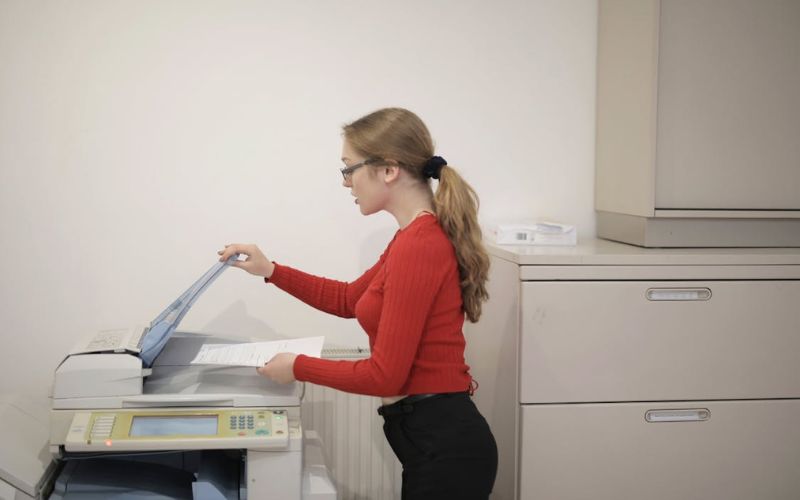
Using cloud printing or file transfer
If your printer is not nearby, cloud printing and file transfer are two reliable alternatives worth knowing.
- Step 1: Upload your file to a cloud service. Use Google Drive, email, or another cloud platform to upload the document or image.
- Step 2: Access the file on another device. Open the file on a computer or another device that is already connected to a printer.
- Step 3: Open the file and prepare for printing. Make sure the layout and format look correct before printing.
- Step 4: Adjust print settings if needed. Set paper size, orientation, and quality based on your requirements.
- Step 5: Print the file. Send it to the printer from the connected device.
4. Common Problems and How to Fix Them
Even when you know how to print from Android phone, issues can still happen due to connection, settings, or device compatibility. Here are the common ones and how to fix them quickly.
Phone Can’t Find The Printer
It usually happens when your phone and printer are not connected to the same Wi-Fi network or the connection is unstable. Start by checking both devices are on the same network, then turn Wi-Fi off and on again. Restarting the printer often helps it reappear.
Print Option Not Showing
Sometimes it feels like your phone doesn’t support printing, but the option is just hidden. In most apps, it’s located under the share icon or the three-dot menu. If you still can’t find it, try opening the file in another app like Google Drive.
Poor Print Quality Or Wrong Layout
Blurry text or cut-off images usually come from incorrect settings. Before printing, adjust paper size, orientation, and quality. For photos, always select high quality for better results. Printing is not just sending a file, it’s controlling how it appears on paper.
Printer Connected But Not Printing
In this case, the file is sent but nothing happens. Check if the printer is out of paper, low on ink, or paused. Also, clear any stuck print jobs in the queue before trying again.
>>> Read more: How to Make Phone Charge Faster: Simple Fix That Works
5. FAQs
Can all Android phones print wirelessly?
Most modern Android phones support wireless printing, but it only works properly when a few conditions are met. Your printer must also support Wi-Fi or wireless printing, and both devices need to be connected to the same network.
Do you need an app to print from Android?
No. Android already has built-in printing support, so in many cases you can print directly from apps like Google Drive, Chrome, or Photos.
Why can’t my phone find my printer?
The most common reason is that your phone and printer are not on the same Wi-Fi network. It can also happen if Wi-Fi is weak, the printer is offline, or Bluetooth/Wi-Fi settings are turned off.
6. Conclusion
At first, printing from your phone feels confusing. But once you break it down, a pattern appears. You connect devices. You select content. You adjust settings. And then you print.
Once you understand how to print from Android phone, you remove friction from everyday tasks, turning your phone into a complete, functional tool instead of just a viewing device.