You check your battery at noon, and it’s already below 40%. Nothing unusual, just messages, a few apps, maybe some scrolling. Yet the drain feels faster than it should.
That leads to a simple but important question: how to turn off 5G on an iPhone to make the battery last longer without sacrificing everyday performance? Let’s walk through it clearly so you can adjust it in minutes.
1. How to Turn Off 5G on iPhone (Step-by-Step)
If you’re looking for the quickest way to understand how to turn off 5G on iPhone, the process is built directly into your cellular settings.
Step 1: Open cellular settings
Go to the Settings app on your iPhone. Scroll down and tap Cellular (or Mobile Data, depending on region). This is where all network-related controls are located.
Step 2: Access cellular data options
Inside the Cellular menu, tap Cellular Data Options. This section controls how your iPhone connects to networks, including 5G, LTE, and data modes.
Step 3: Change voice & data mode
Tap Voice & Data, then select LTE instead of 5G On or 5G Auto. Once selected, your iPhone will stop using 5G and rely on LTE, which is more stable and consumes less battery.
2. How to Turn 5G Off on iPhone by Model
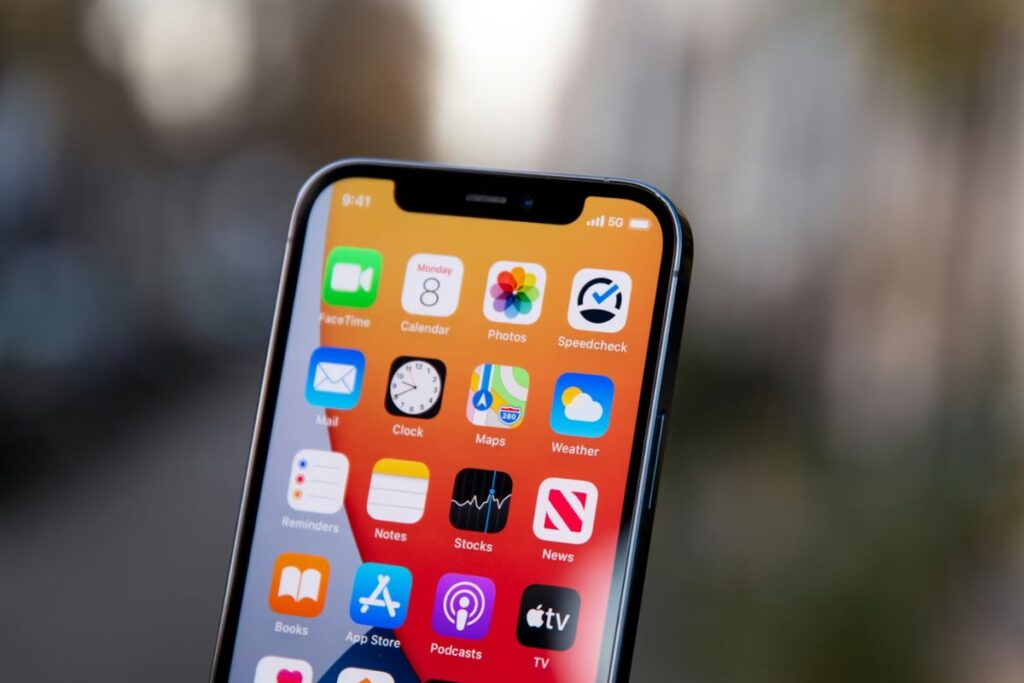
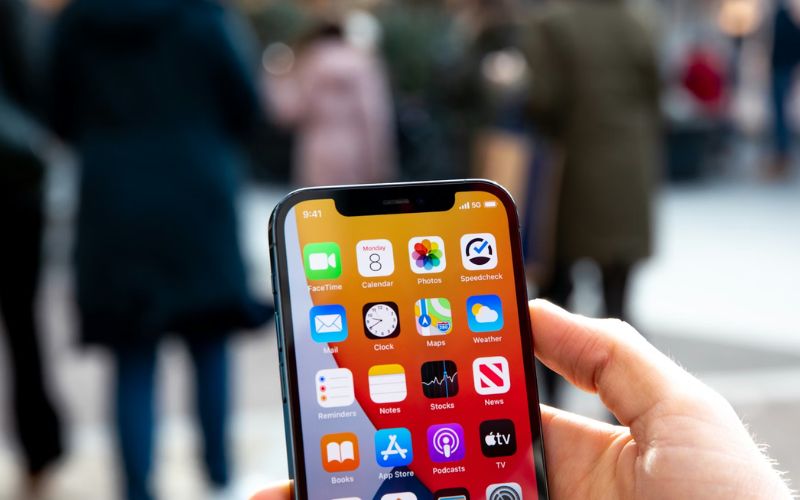
How to turn off 5G on iPhone 12
Step 1: Open the Settings app
Unlock your iPhone 12 and tap Settings from the home screen. This is where all system controls are managed.
Step 2: Tap Cellular
Scroll down and select Cellular. This section controls your mobile network, data usage, and connection type.
Step 3: Select Cellular Data Options
Inside the Cellular menu, tap Cellular Data Options to access advanced network settings.
Step 4: Tap Voice & Data
Choose Voice & Data. This is where you can switch between 5G and LTE modes.
Step 5: Select LTE to disable 5G
Tap LTE. Once selected, your iPhone 12 will stop using 5G and stay on LTE, which often improves battery life and connection stability. This is an easy way how to turn off 5G on iPhone 12.
>>> Read more: Retrieve Deleted Phone Numbers iPhone: How To Get Your Contacts Back
How to turn off 5G on iPhone 16
Step 1: Open Settings from the home screen
Unlock your iPhone 16 and open the Settings app. This is the starting point for all network adjustments.
Step 2: Go to Cellular settings
Scroll and tap Cellular. This menu manages how your device connects to your carrier network.
Step 3: Tap Cellular Data Options
Select Cellular Data Options to access detailed connection settings.
Step 4: Open Voice & Data settings
Tap Voice & Data. Here, you will see options like 5G On, 5G Auto, and LTE.
Step 5: Choose LTE to turn off 5G completely
Select LTE. This ensures your iPhone 16 no longer connects to 5G networks, preventing automatic switching and helping maintain more consistent battery performance.
Step 6 (Optional): Confirm data mode if needed
Go back and check Data Mode. If available, select Standard instead of data-intensive modes to further optimize battery usage alongside LTE. These are about ways how to turn off 5G on iPhone you need to know.
Why you cannot turn off 5G on iPhone 11
The iPhone 11 does not support 5G technology. It only operates on 4G LTE networks, so there is no 5G setting available in the device. If you are looking for how to turn off 5G on iPhone 11, there is nothing to change if the phone is already using LTE by default.
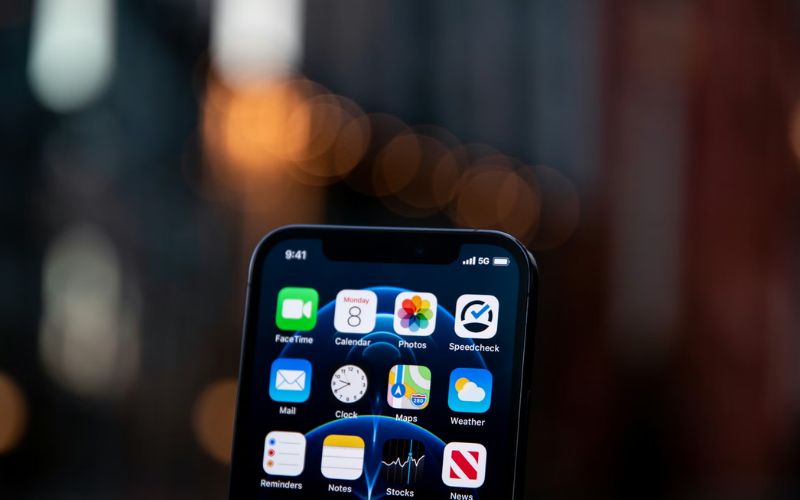
3. 5G Auto vs 5G On vs LTE: What Each Mode Means
Understanding modes helps explain why learning how to turn off 5G on iPhone matters in real use.
| Mode | How It Works | Battery Impact | When to Use |
| 5G On | Always keeps the phone connected to 5G whenever available, regardless of need | High battery usage | When you need maximum speed for downloads, streaming, or hotspot usage |
| 5G Auto | Switches between 5G and LTE based on activity and network conditions | Medium | When you want a balance between performance and battery life |
| LTE | Disables 5G and uses a stable 4G connection only | Low battery usage | When you want longer battery life and more consistent signal stability |
The cause–effect relationship is straightforward: Stronger network demand → more power usage → faster battery drain. So choosing LTE is less about losing speed and more about controlling consistency.
4. When and Why You Should Turn Off 5G on iPhone
There are specific situations where turning off 5G makes a clear difference.
If you’re commuting through areas with weak 5G coverage, your phone constantly searches for signals. That repeated switching drains power faster than staying on LTE.
The same applies during travel, long workdays, or when you rely on your phone without frequent charging. In these cases, knowing how to turn off 5G on iPhone becomes a practical habit rather than a one-time fix.
A simple real-life example: Someone working all day outdoors may see battery life extend by several hours just by switching to LTE in the morning.
5. When You Should Keep 5G Enabled
How to turn off 5G on iPhone is not always the best choice.
If you are in a strong coverage area and need high-speed data for streaming, downloads, or hotspot use 5G delivers clear benefits.
This is where contrast becomes important:
- Performance priority → keep 5G on
- Battery priority → switch to LTE
The decision depends on what matters more at that moment.
>>> Read more: How To Unlock Sprint Phone (Free Methods And What You Need To Know)
6. How AirTalk Wireless Lets You Upgrade to a Free 5G iPhone
When a phone struggles with signal stability or battery life, it often reflects a mismatch between older hardware and the demands of modern networks. That gap is where performance drops, which is why newer devices, built to handle technologies like 5G more efficiently, can deliver a more stable connection while managing power more effectively over time.
From there, the question naturally shifts from whether to upgrade to how to make that upgrade more accessible. This is where the Lifeline program comes in. Lifeline is a government assistance program designed to help eligible consumers reduce the cost of mobile service through a monthly subsidy.
That support is applied through participating providers such as AirTalk Wireless, which operate as Eligible Telecommunications Carriers (ETCs). These providers may offer devices as part of their own promotions, depending on availability and location. It is important to note that any device offer comes from the provider, not from the Lifeline program itself.
As part of the program rules, Lifeline is limited to one benefit per household, is non-transferable, and is only available to consumers who meet eligibility requirements.
So the connection comes full circle. If an older device is limiting performance, upgrading can improve reliability and everyday use, while Lifeline helps make ongoing service more manageable for those who qualify.
IMPORTANT: The government does not subsidize devices. Lifeline programs cover basic service costs only. Free or discounted devices, upgrade plans, or top-ups are exclusive benefits provided by AirTalk Wireless as part of promotional offers. Terms and conditions apply. Limited-time promotions offers vary by state, stock availability, and eligibility.
7. FAQs
Does turning off 5G improve battery life?
Yes. Disabling 5G reduces how often your phone searches for high-speed signals, which lowers power consumption and extends battery life.
Does turning off 5G affect call quality?
Not significantly. Calls typically rely on LTE or VoLTE, so switching off 5G rarely impacts call clarity.
Why is my iPhone still switching networks?
Even after adjustments, your phone may adapt to network conditions automatically. This is part of system optimization designed to maintain connection stability.
Conclusion
How to turn off 5G on iPhone is one of the fastest ways to improve battery life without changing how you use your phone. By switching to LTE, you reduce background network strain, stabilize performance, and extend daily usage time.
If your battery still drains quickly or your device struggles with network performance, it may be time to upgrade to a newer model optimized for better power efficiency.